iCloud is a go-to option for iPhone/iPad users. While Google Drive is a more general cloud storage option, it’s no less popular. Today, we’re giving you our thoughts on the iCloud vs Google Drive debate to see which provider is better for you. Mind you, we’re discussing two solid but not great providers.
We still think pCloud is much better than these two. But if your mind is set on iCloud or Google Drive, this comparison will tell you what you want to know. Our in-depth Google Drive vs iCloud comparison will discuss their compatibility, performance, security, privacy, ease of use, pricing, and more.
In the final verdict, we’ll count the score and see which provider won more rounds. This will determine the winner. If you’re in a hurry and immediately want the answer, we gave the victory to Google Drive.
iCloud vs Google Drive: Quick Overview
| iCloud | Google Drive | |
| 🤑 Starting Price | $0.99 for 50 GB | $19.99 annually for 100 GB |
| 🔄 Refund Policy | 14 days | No |
| 📱 Compatibility | iOS, macOS, Windows | iOS, macOS, Windows, Android |
| 📂 File Versioning | No | 30 days (100 versions) |
| 🎭 Zero-Knowledge Encryption | No | No |
| 🆓 Free Storage | 5 GB | 15 GB |
| 📈 Maximum Paid Storage | 12 TB | 2 TB |
| 💯 Best for | Cloud storage and file syncing on Apple devices | Collaboration, business, and file syncing |
Apps and Compatibility: iCloud vs Google Drive
Apple and Google have designed their cloud storage services to meet the needs of their proprietary systems, iOS and Android. However, Google is more generous, offering beautiful apps for all platforms. Google Drive is supported on iOS as well. It’s rated pretty high on the App Store and used by many iOS users.
On the contrary, Apple’s business model is known, so it’s no surprise that iCloud isn’t available on Android. You can access it through your web browser, but the experience is limited. For example, Android users can’t edit Keynotes and Calendar entries. Plus, they lack features like Wallet, Reminders, and so on.
Google Drive’s application is fully featured on iOS. But what about their desktop apps? As you can guess, macOS and Windows are supported in both cases. However, if you’re a Linux user, don’t expect any level of support. For this, you’ll have to use pCloud, which works on all popular Linux distros. Are these two easy to use, though?
🍏 iCloud
People who use iPhones will be acquainted with it. It’s seamlessly integrated into the OS, so you don’t need to do anything to access it. Once you create your Apple account, iCloud’s activation takes place, and you’re in. The phone will natively back up your files to the cloud until the storage is full. It’s simple stuff.
You can, of course, disable automatic backups, in which case, your files will remain only on the phone. Now, when it comes to the desktop app, in this Google Drive vs iCloud review, the latter looks great. You’ll need to download the setup file, install it, and then set your syncing options once you sign in.
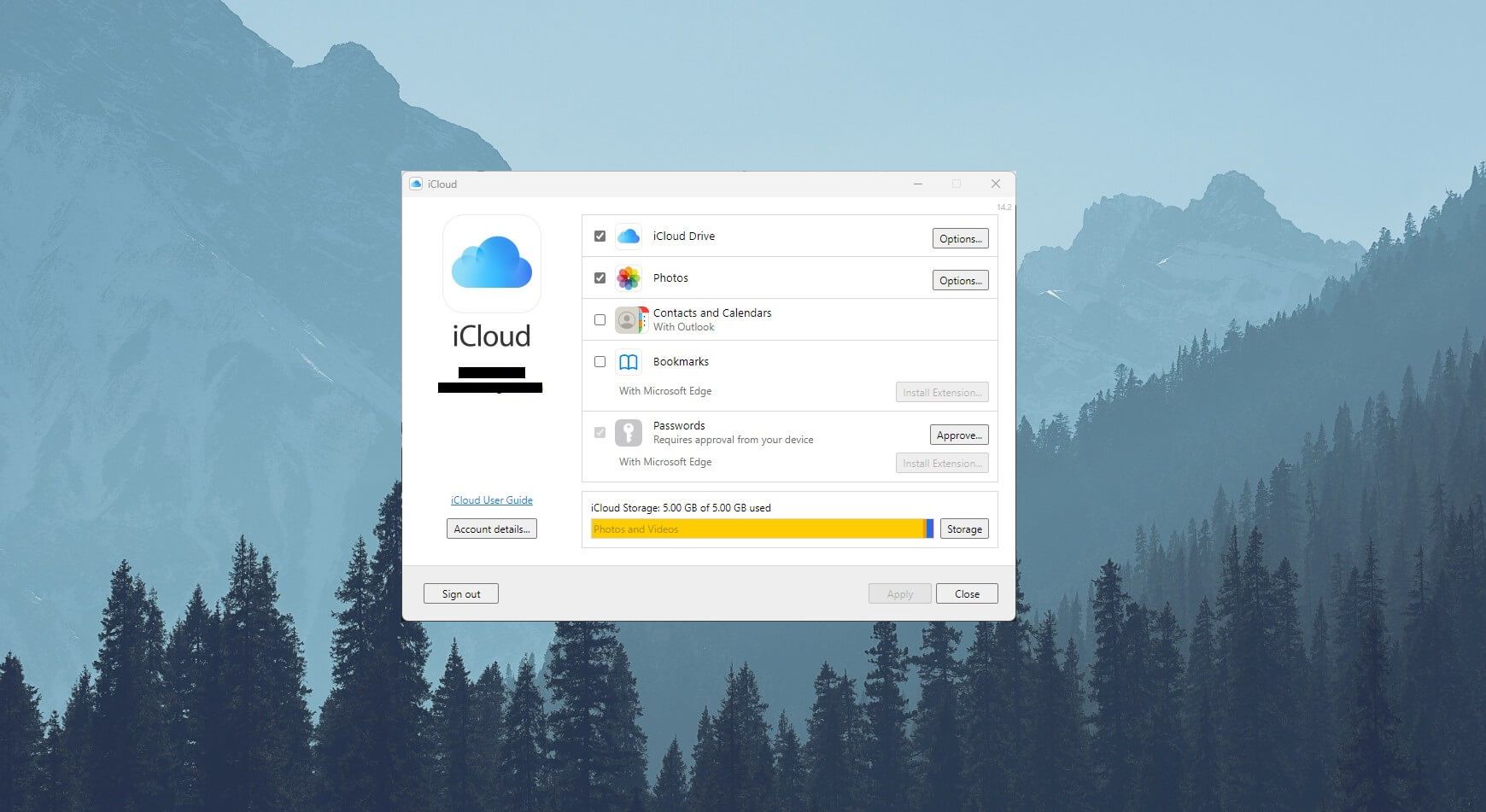
The iCloud Drive folder will then be created on your PC, and you’re ready to use it. Just drag and drop your files into this folder to have them on your iCloud. You can do the same to download your files. The app’s UI lets you choose iCloud folder location, enable Shared Albums, or have iCloud store your passwords.
Albeit, we don’t recommend it due to its past security issues that we’ll review here. Finally, there’s the web application that you can access via your browser. This is a good-looking app. The home screen shows your notes and photos, but you can also access Calendar, Contacts, Reminders, Numbers, and other apps.
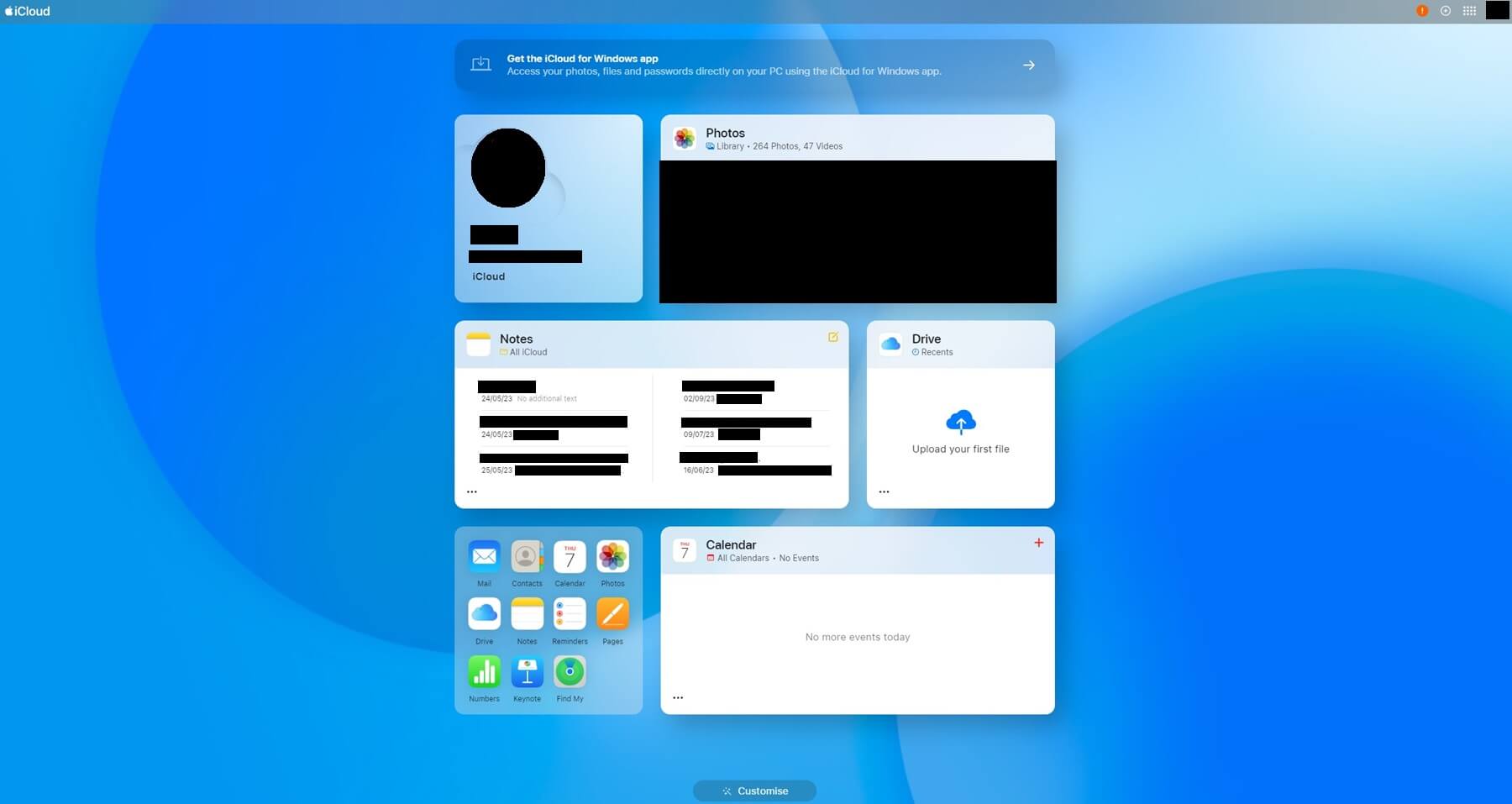
We like that you can even edit your notes while you’re there and add new contacts. The web app also lets you manage iCloud settings and sign out of all browsers to prevent unauthorized access. All in all, iCloud’s web app is a step in the right direction, for which we must praise Apple.
🤖 Google Drive
Google Drive has been doing a good job with its apps since the day of its inception. But is it better than iCloud in ease of use? To start, it offers a simple-to-use mobile app for iOS and Android. The home screen houses the files that you can access. Files can be transferred to your phone or synced to other devices.
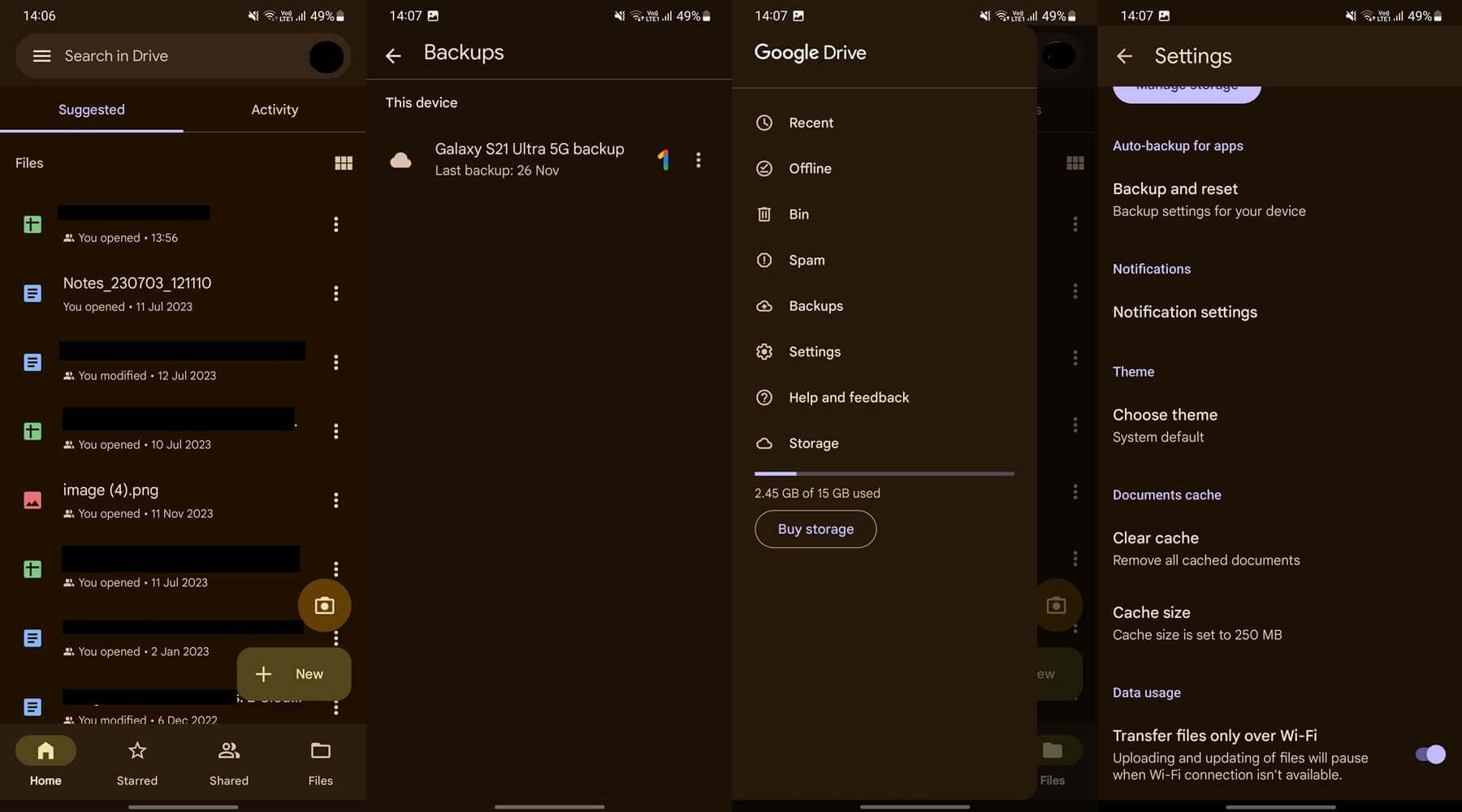
Another good thing is the option to transfer them to a Shared folder and have other users access them. We find its auto-backups helpful, too. This means every photo can end up on the cloud once you take it (or a video). In Settings, you’ll find the option to transfer files over WiFi or use your mobile data.
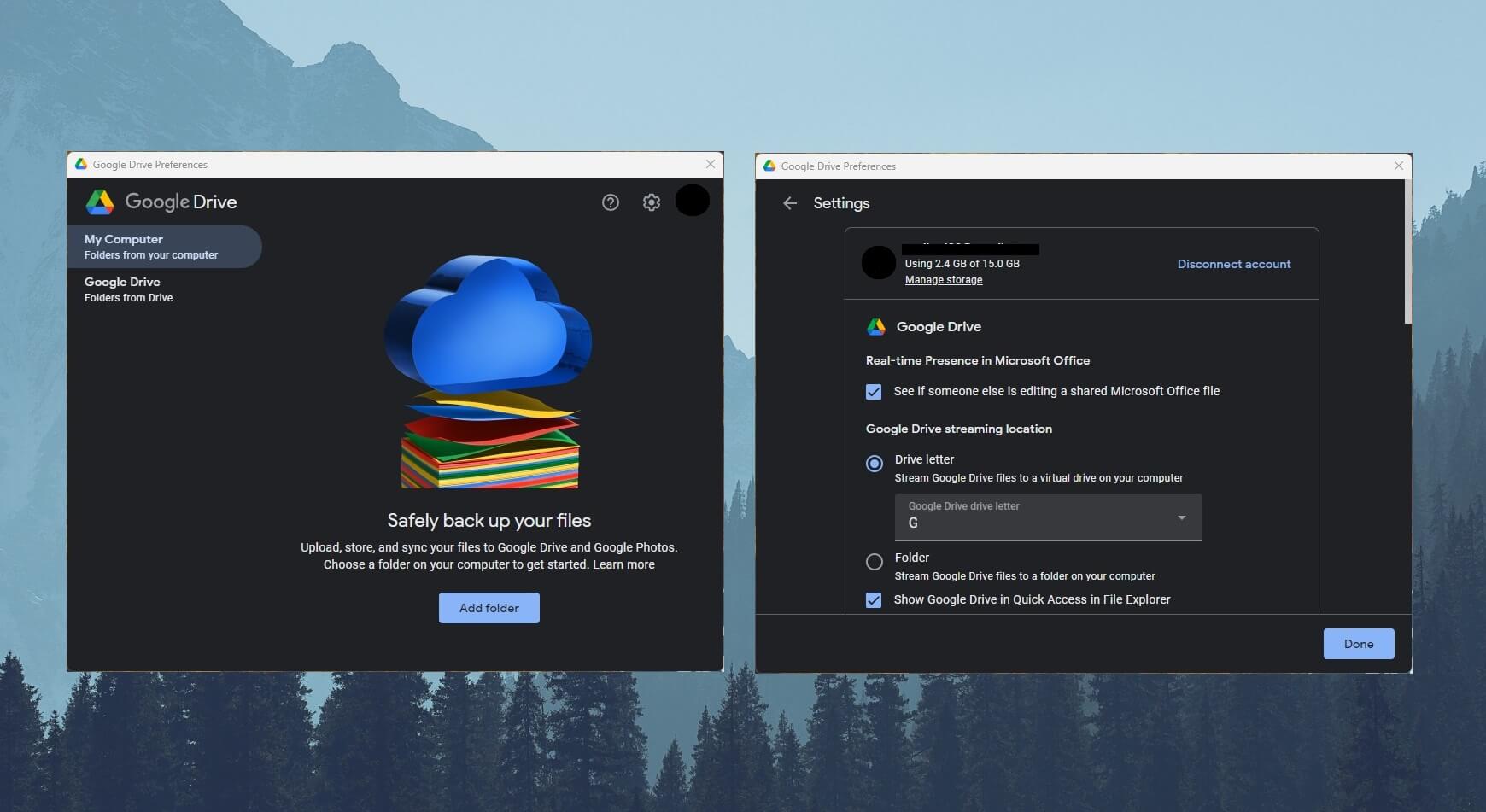
Google Drive’s desktop app is eerily similar to iCloud. Again, this will be a drive on your computer, like any other. Copying and pasting your files to the drive transfers them to the Google Drive storage. However, unlike iCloud, which uses a folder, Google Drive is a virtual drive for storing your files.
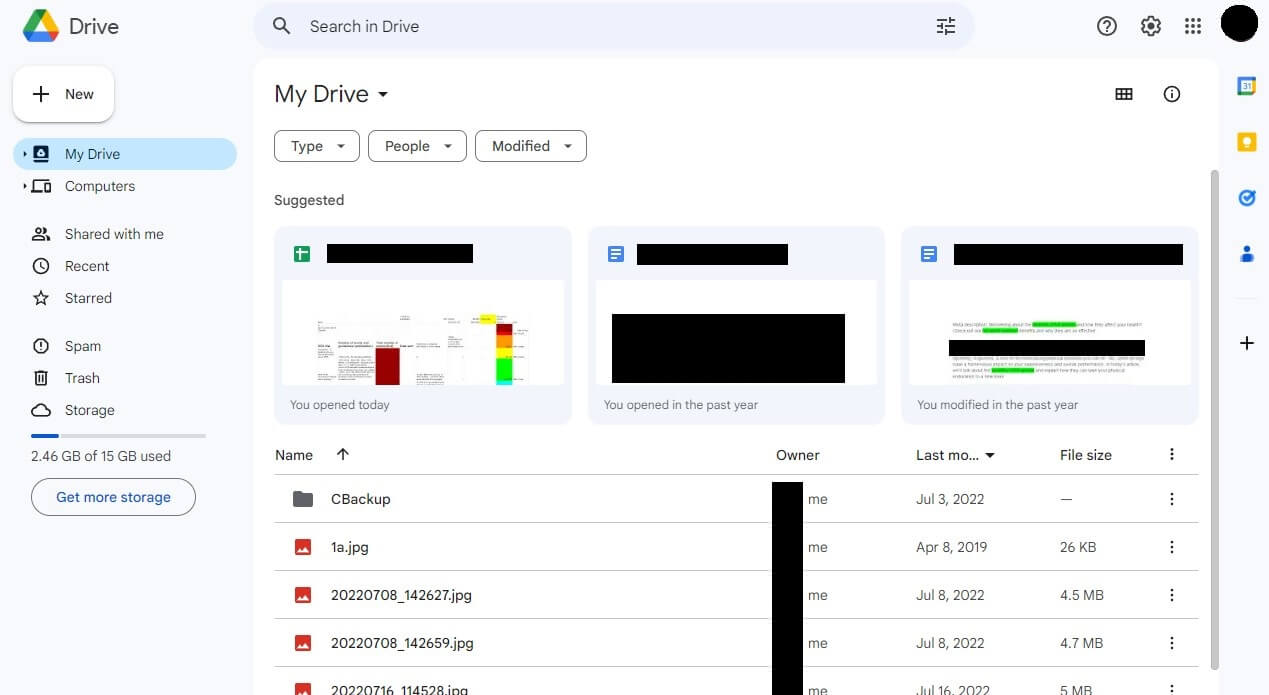
Coincidentally or not, in this iCloud vs Google Drive duel, the second provider has an extremely well-done web app. We found this the best way to use this service, in fact. Your files are displayed on the home screen, and thanks to Google’s set of business tools, you can edit them right away.
To upload your files, drag them to the interface from your desktop. We like that the app lets you access both cloud and local storage on computers, making it easy to locate all your files without much hassle.
🏆 Winner: Google Drive
Google Drive takes the lead due to a better-looking UI and support for all devices and platforms. While iCloud lacks Android support, Google Drive works on all major systems and doesn’t exclude any features.
Google Drive vs iCloud: Features Compared
To make it clear, neither iCloud nor Google Drive is particularly feature-packed. Again, if compared to pCloud, you’ll see that this service offers significantly more. Still, if pCloud isn’t what you want and you’ve set your eyes on Google Drive or iCloud, let’s see which one offers more for the money.
Starting with basic features, all of them are here. Automatic back-ups and syncing are in both providers, which makes it easy to keep your files on the cloud safe and secure. If you specifically need a backup service, you might want to look at IDrive. Neither provider will support block-level syncing.
That means the process is a tad slower than expected. This feature is available in pCloud, which makes it extremely fast. Another thing to mention is file sharing, simple and intuitive in both. Google Drive and iCloud also lack password protection when sharing links, which we think is diabolical.
The good thing is that online document editing is possible. Google Drive has an advantage here because of its suite of office apps, which iCloud lacks. Speaking of that, let us discuss some of their differences to further help you decide between Google Drive and iCloud in 2026.
📟 First-Party Applications
First-party applications are essential for a quality cloud storage provider. They help you navigate your files and modify them without leaving the cloud space. Google Drive is excellent in this regard, as it has an array of G Suite applications. We’re talking about Docs, Sheets, Calendar, Keep, and others.
This makes it simple to edit a document and save changes in real-time. Also, other Google Drive users can be allowed to edit the same documents, which is great if you work in a team and you need to collaborate. While not as great as OneDrive’s integration of Office 365, this is the closest you’ll get to that level.
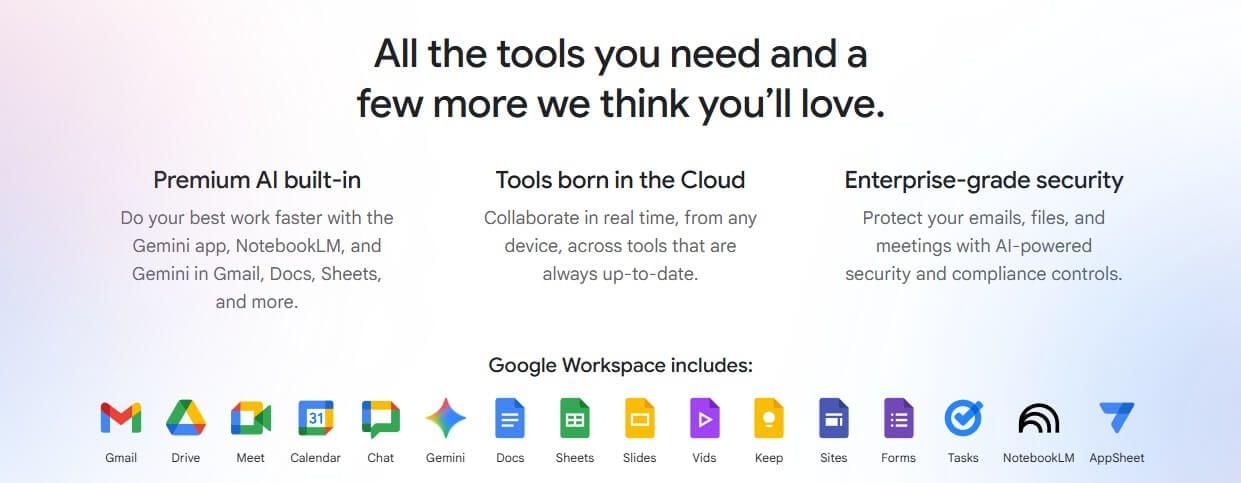
What’s more, Google Drive can reproduce your photos and videos regardless of their size and quality. All in all, its application suite is a colossal hit and makes GDrive a great all-arounder.
Moving to iCloud, Apple wants you to get the latest versions of productivity tools. Hence, there will be Apple-typical apps like Reminders, Pages, Notes, Numbers, Mail, Photos, and a few more. We like its Calendar inclusion too, as it helps organize important events and business-related meetings.
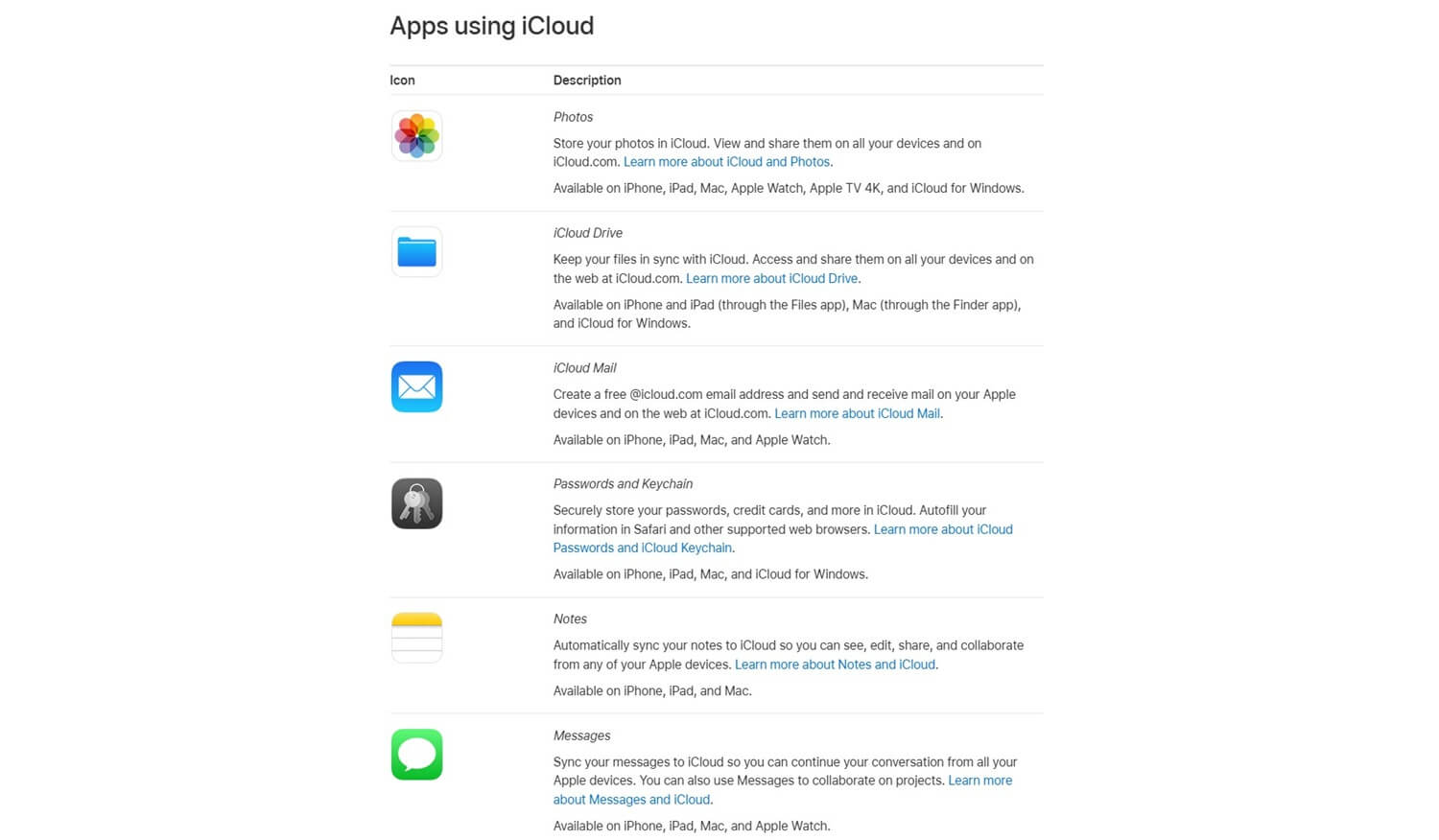
Another handy tool is the option to find your Apple devices even if they’re lost, even if the devices are offline. Its Photos app will sync your photos/videos directly to the Photos on your iPhone/iPad/Mac, for example, so all the photos and videos are in one place.
Since we mentioned the Notes app, all your notes can be modified and manipulated directly from the cloud storage app. Apple-specific apps work only inside its ecosystem. In other words, users inside the Apple ecosystem will enjoy them. Android and Windows users have to buy an iPhone and a Mac
📲 Third-Party Integrations
Third-party integrations in iCloud are nonexistent. However, if you switch to Google Drive, you’ll find a heap of third-party apps to play with. There’s something called Google Workspace Marketplace where you can download these applications for free. For instance, we downloaded a few video and photo editors.
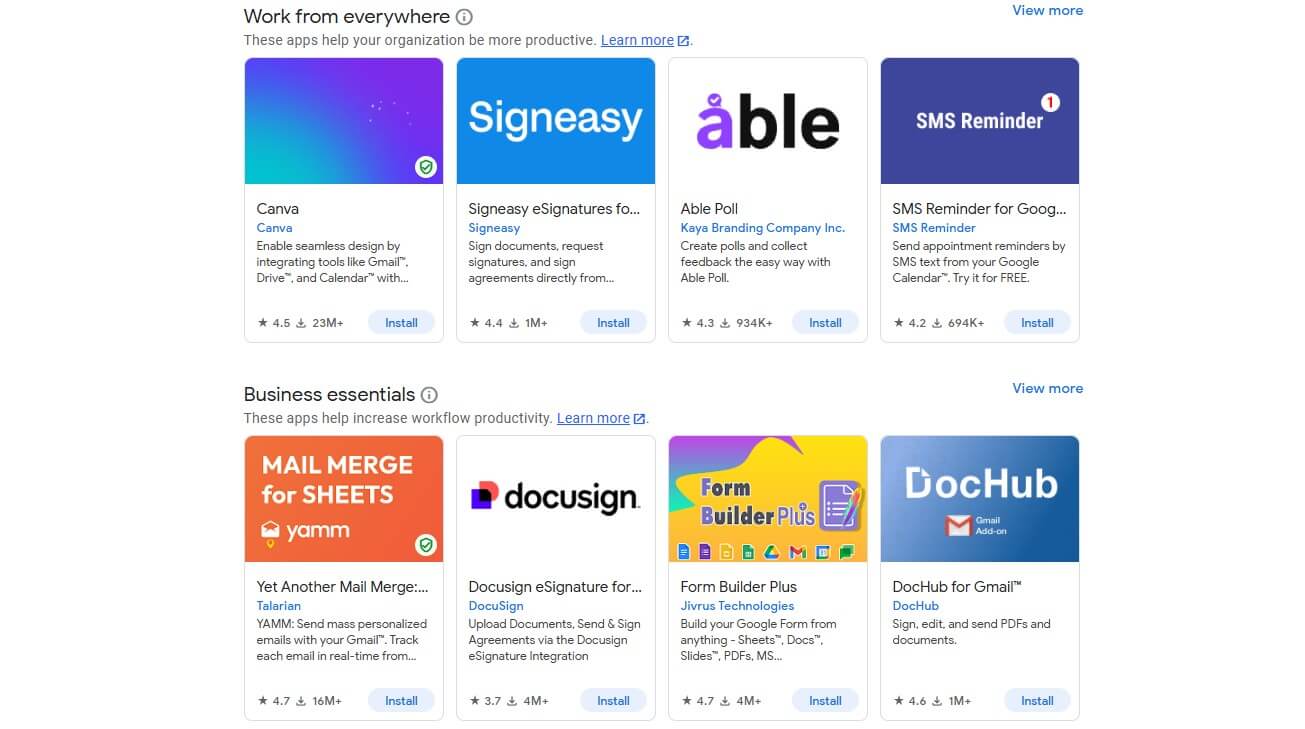
This enabled us to edit our videos and photos without downloading them to our devices. Not to mention various productivity and business apps like Trello, Salesforce, and Zoom, all of which are essential. Third-party apps like this make Google Drive a solid alternative to iCloud for productivity-oriented users.
Having all these apps at your fingertips for free sounds ridiculously good. It means you can do all your work in one seamless ecosystem, which speeds up the workflow significantly.
🚧 File Transfer Limits
Unlike pCloud, which doesn’t limit your transfers, Google Drive and iCloud do. This can be extremely annoying if you’re looking to upload large files at once, which tells us that neither of these is made for heavy workloads or those with high demands for storage. Google Drive’s transfer limit isn’t very severe.
Each user has a transfer limit of 750 GB a day. If you cross the limit, you’ll need to wait for 24 hours before uploading again. But who the heck uploads 750 GB of data each day? Now, Apple iCloud is more severe. The file size limit is a measly 15 GB. Think about recording a two-hour-long 4K 60 FPS video for a vlog.
Do you think you can upload it at once? These videos tend to be large, so who knows? We want to say that 15 GB sounds ridiculously small, especially with photos, videos, and other files taking up much more space than before because of their quality. For the most part, iCloud users see this as an obstacle.
If you need a more robust solution, you won’t pick iCloud either way.
📄 File Versioning
File versioning is one disappointing lack of iCloud. iCloud or Google Drive should have this feature, considering their price tag. pCloud has 30 days of file versioning (with an extended version of 180 days) and 15 days for its non-paid cloud storage plan. Google Drive, luckily, supports it, but limits you to 30 days.
Keep in mind that Google’s solution can keep up to 100 versions of the file. This should be enough for important documents and spreadsheets that most people use this feature for. iCloud only stores previous versions of your documents, and there’s File Recovery that keeps all versions of files within the last 30 days.
There’s, however, no option to keep particular file versions forever like on OneDrive.
🏆 Winner: Google Drive
Again, Google Drive is the winner because of its productivity and collaboration tools, file versioning, and robust third-party app support. To be clear, neither is impressive in this aspect, and we recommend pCloud for longer file versioning, unlimited transfer file size, block-level syncing, and more.
Google Drive vs iCloud for Business & Teams
Apart from individual cloud storage plans, there are plans for businesses and teams. These are popular for start-up companies or large conglomerates that rely on the cutting-edge security that cloud storage providers can provide. How good are these two in this regard? Let’s examine them.
🤖 Google Drive
This one’s pretty powerful. Its G Suite apps with third-party apps make it a true business powerhouse. Price-wise, it’s a tad more expensive than we’d like, but its plans are well thought out, with several storage options to cherry-pick from. All plans you see are annual and start at $6.30 per user per month.
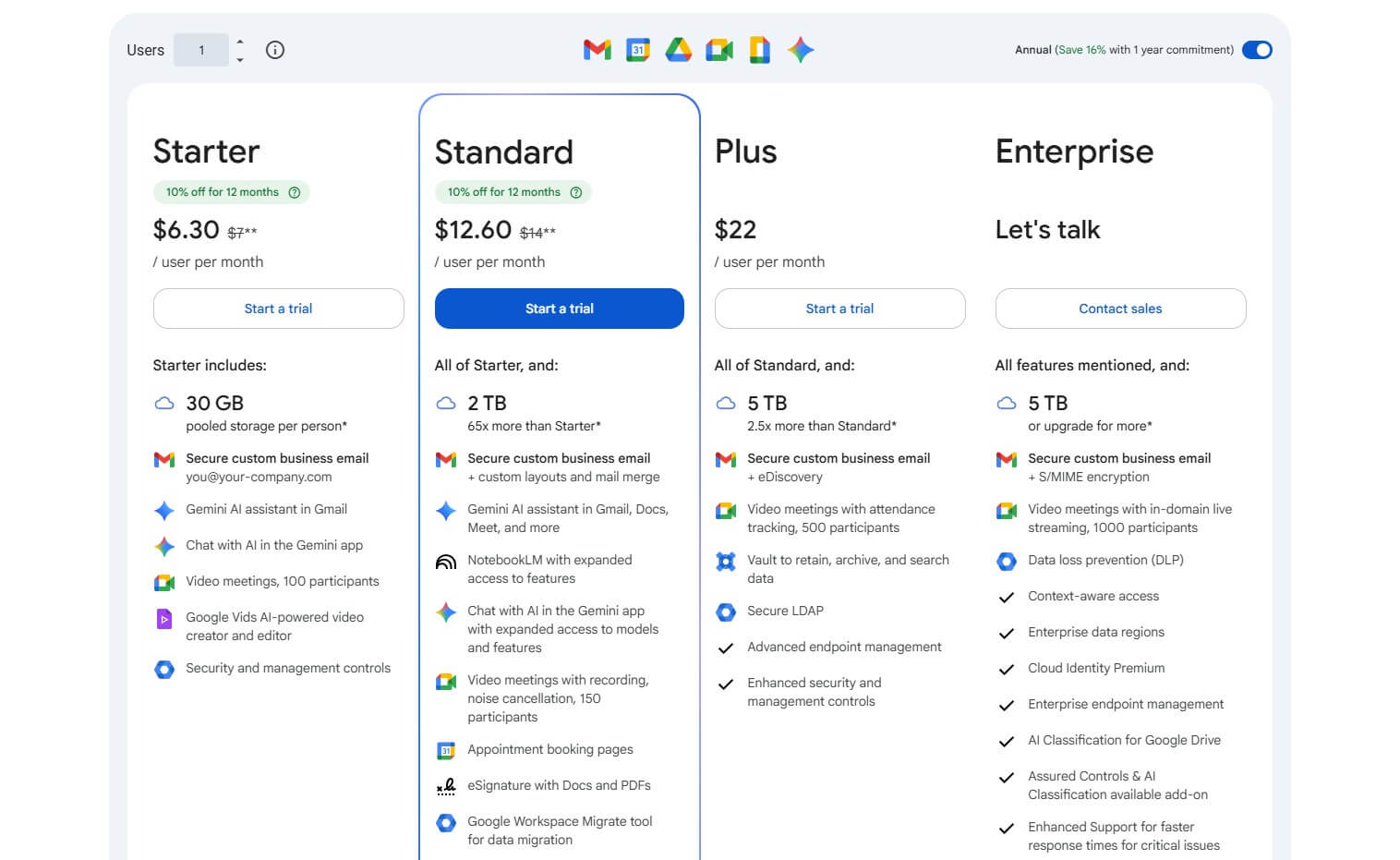
The initial plan has 30 GB of storage per person, with Gemini AI and a few other tools. Our favorite is the Standard plan at $12.60 per user per month, with 2 TB of storage per user, business email, video meetings, and more. The Standard plan costs two times more, but it offers 65 times more storage.
This consequently makes it the best-value option. Google Drive also has Plus and Enterprise plans with 5 TB or more storage per user. There are other bonuses, like enhanced security, eSignature, and better support. During this iCloud vs Google Drive duel, we detected that Google Drive offers unlimited storage.
However, it’s only in the Enterprise plan, which costs a fortune. For a lot less money, you can get unlimited storage with Sync, even as an individual. Also consider pCloud as a good business cloud storage option.
🍏 iCloud
Apple offers Business Essentials, combining iCloud storage and device management. It’s not what we’d call capable business cloud storage, at least not in the traditional sense. You don’t get many business tools, either. To make things worse, Apple offers only up to 2 TB of total storage, which isn’t that much.
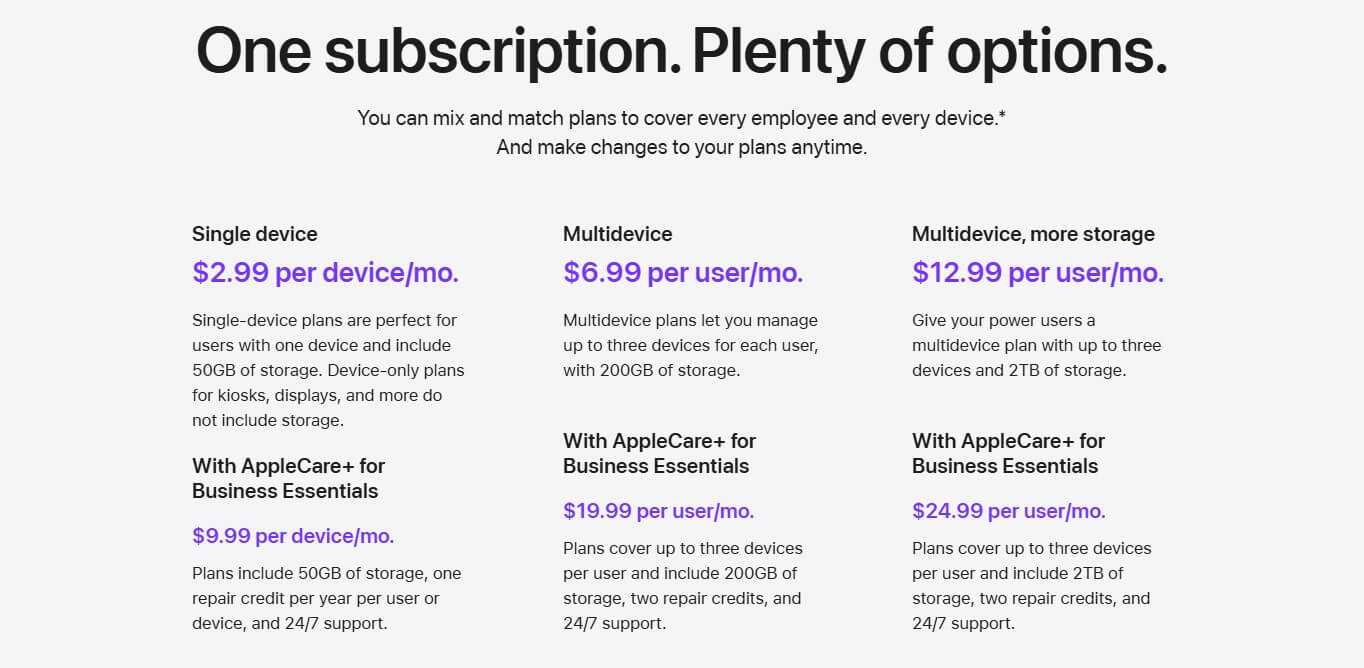
There are several plans:
- Single device at $2.99 per month
- Multi-device at $6.99 per month per user
- Multi-device with more storage at $12.99 per month per user
These plans only allow multiple users, but don’t include any extras to make them stand out from the standard iCloud plans. In addition, Apple now has three more plans with Business Essentials and AppleCare+, which essentially include repair credit and 24/7 support for up to three devices in total.
They start from $9.99 per month per device and go up to $24 per month per user.
🏆 Winner: Google Drive
Google Drive offers better business cloud storage with full-fledged productivity and collaboration tools. It also has more storage per user and even offers unlimited storage for enterprises. iCloud’s Business Essentials pack is for small and mid-sized companies that don’t need extra business features.
iCloud vs Google Drive: Speed Test Results
Transfer speeds are relevant for obvious reasons. You want to have your files ready on the cloud storage and access them easily. In many tests that we performed, pCloud was constantly the best-performing cloud storage. But how do Google Drive or iCloud compare? Let’s start with a few parameters.
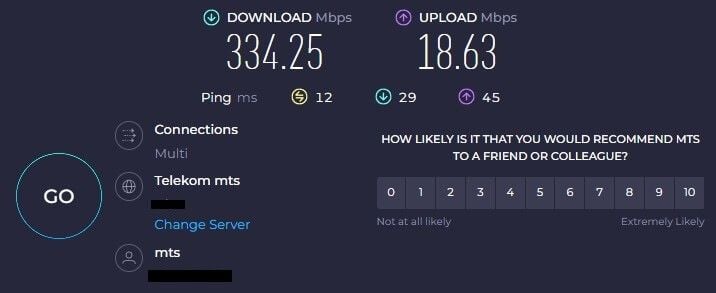
The first one is the internet speed, the most important factor. Our internet speeds are about 335 and 19 Mbps for downloads and uploads, respectively. Take a look:
To test both providers, we uploaded our review file, which consists of random music, videos, and documents. It’s about 3 GB in size, as displayed below:
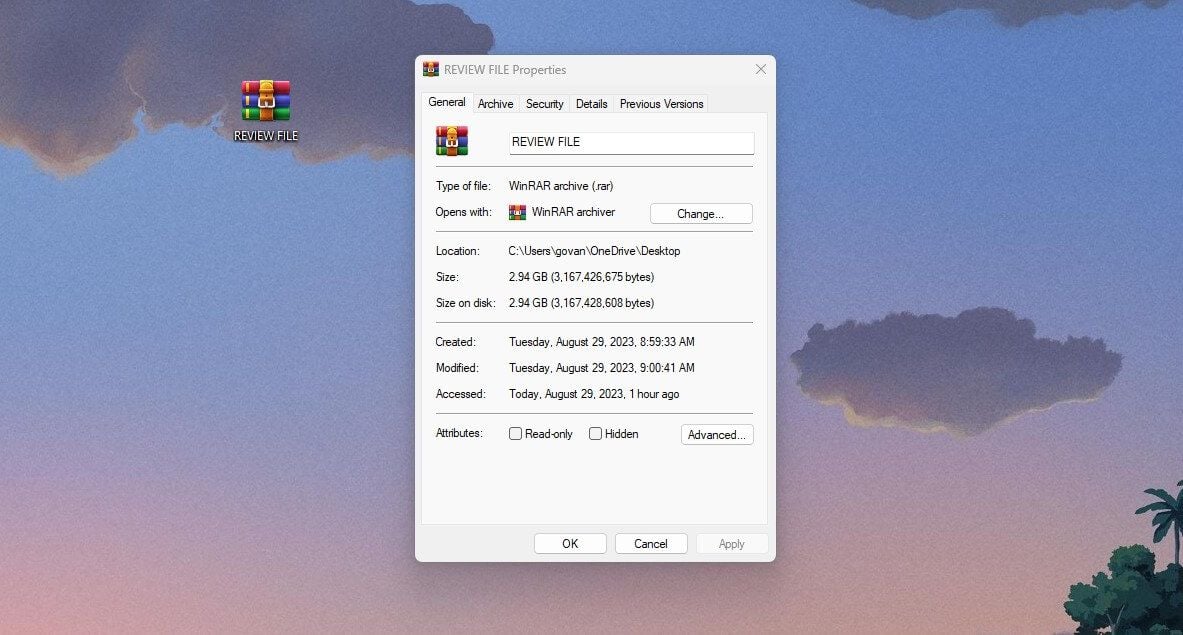
After uploading the file, we recorded the time it took. Next, we downloaded the file from the cloud storage and again recorded it. All of this was done on our Windows 11 PC using the web versions of both cloud storage services. So, what do the results look like after extensive testing and file transfers?
- Google Drive uploaded our file in 31 minutes and downloaded it in 1.4 minutes.
- iCloud uploaded the file in 34 minutes and downloaded it in 2 minutes.
For comparison, pCloud uploaded and downloaded the same file in 20 and 1.5 minutes, respectively (similar to Internxt). It’s faster than both, no doubt. As for these two, they’re quite similar. Large files will show significant differences, but in the end, Google Drive is just a speck faster.
🏆 Winner: Google Drive
Google Drive has faster uploads and downloads, but the 10% or so difference isn’t high enough to consider it blazing-fast. You’ll still enjoy pCloud and Internxt more if you need higher transfer speeds.
iCloud vs Google Drive: Security & Privacy
Google and Apple’s security practices aren’t the most commendable. With this in mind, if you’re picking from these two, you’ll simply have to go for the lesser evil.
🍏 iCloud
Where to start? iCloud claims to use AES-256-bit encryption for stored and in-transit files. This sounds encouraging if you forget about its fappening incident about a decade ago. Remember when female celebrities got their iCloud accounts hacked? Remember those intimate photos that surfaced online?
That’s how iCloud’s security works. That was a long time ago, but the situation is now better… right? No. Apple uses this neuralMatch technology that scans your photos stored on iCloud. Why? To battle child pornography. Suspicious images undergo another manual check that Apple’s employees will manage.
Apple then compares your photos to its CSAM database to ensure it’s safe and doesn’t include child pornography or other inappropriate things. On the good side, several features like Private Relay and Hide My Email tools make cloud storage safer. Private Relay will hide your IP when using Safari to safeguard your privacy.
Hide My Email allows you to create a new email address and use it instead of your own. While working well, they aren’t enough to wash the bitter taste from Apple’s despicable privacy violations and poor security.
🤖 Google Drive
Google Drive or iCloud, which is safer? We can say Google’s solution won’t be so secure either. Like its rival, it employs AES-256 encryption, but this is a bog-standard feature. Logging is alarming, of course, as Google can access your entire cloud storage if it thinks it’s necessary to enforce its policies.
The company can read your emails and spy on your conversations. We also know it can open and even edit your documents if they’re offensive. Let’s not forget that encryption keys for your files are kept by Google, which explains a lot. Did you know that Google Drive scans each file for viruses and copyright violations?
This alone speaks volumes about how the company treats you. pCloud, for example, offers zero-knowledge encryption, which means it has no clue about what you’re keeping on the cloud. Neither of these two offers zero-knowledge encryption. Don’t think Google hasn’t leaked anything from its cloud storage.
Just a few years ago, more than a thousand private conversations from one of the employees were leaked to a Belgian news outlet. That was a major hit to Google’s reputation.
🟰 Winner: Tie
It’s hard to say who the winner is of this. Really. We’ll have to call this one a tie, but in a bad way. None of them is safe and secure, even offering no zero-knowledge encryption. You’ll find pCloud, NordLocker, and even IDrive more well-guarded options.
Customer Service: iCloud or Google Drive?
Customer service might not be very relevant to you, but it will be once you face an issue you can’t fix. Google Drive and iCloud are here for you once in a blue moon. Live chat service won’t be there, so email support takes its place. Email support tends to be slow, especially when discussing large companies like these.
We guess they get thousands of requests every day, so it’s hard to get to them all. That said, both providers will take their time to respond, and it won’t be so quick. Google Drive lets you buy priority support. In that case, 24/7 live chat support is available, which means faster help when you really need it.
However, it requires an administrator account and the Enterprise plan, which most will find unnecessary. Google’s plans other than the Standard plan all support this upgrade, for example, but given their high prices, we don’t think you’d want to buy it. Likely, you’ll stay with the Standard support option and call it a day.
iCloud doesn’t offer any such options, so don’t expect any potential improvements. We don’t need to discuss their FAQs and guides on the site. It’s normal, and every cloud storage provider should have it.
🏆 Winner: Google Drive
Google Drive wins by a smidge since it lets you buy Enhanced Support to get access to a 24/7 live chat service. On the basic level, both rely on email support, which isn’t performing the best, so this round could’ve been a draw as well.
iCloud vs Google Drive Pricing Plans & Storage Options
Rounding up this iCloud vs Google Drive duel, we have pricing on the list. Since we already discussed business plans earlier, here, we’ll focus on the so-called individual plans that most people buy.
🤖 Google Drive
Starting with Google Drive, the provider doesn’t offer many plans. However, those that are here are priced properly, with some being less and some more valuable. In particular, the 100 GB plan at $19.99 a year sounds decent for light usage and storing mostly documents, not many high-res photos and videos.
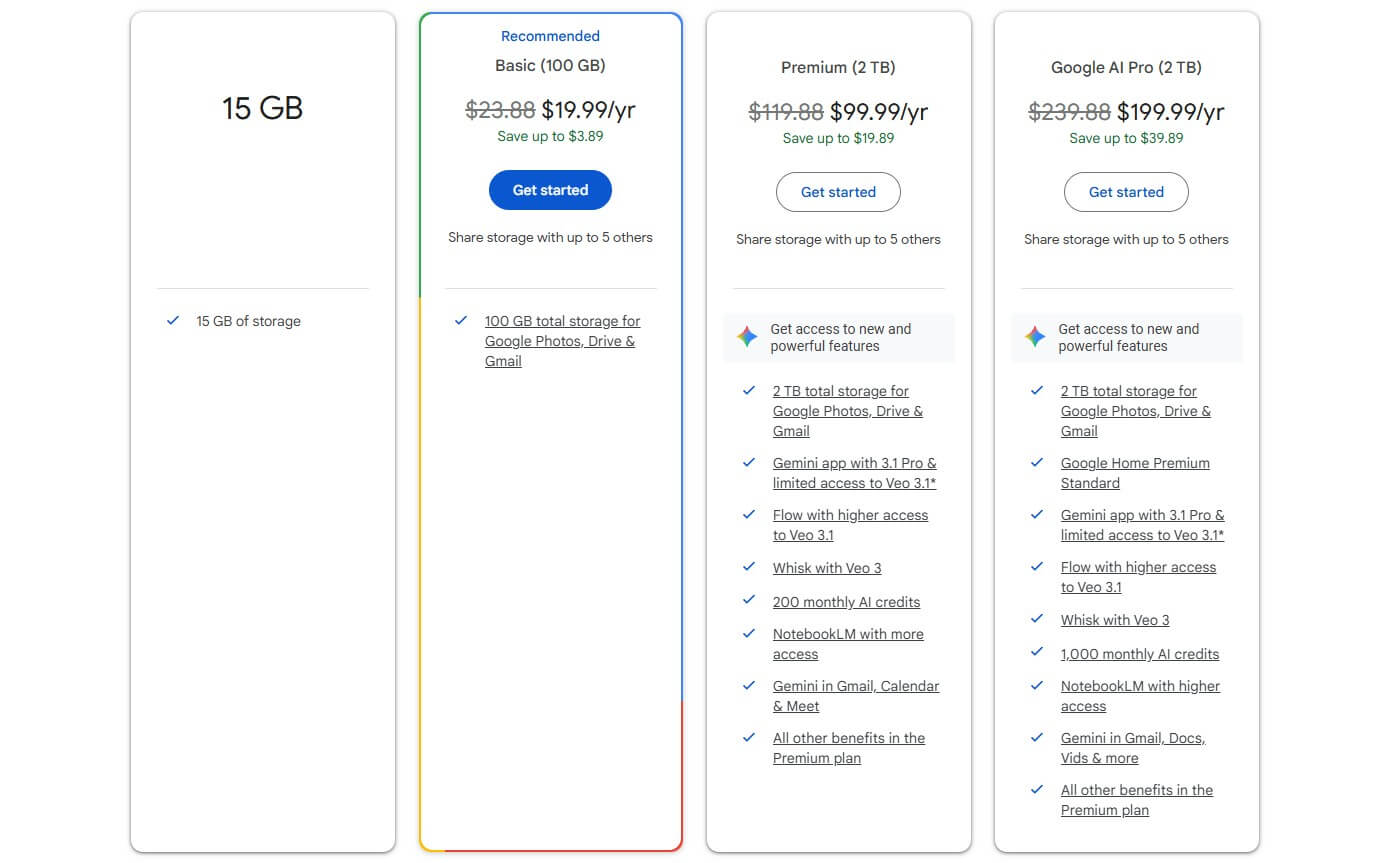
Then, the Premium plan at $99.99 a year offers 2 TB of storage that you can share with up to 5 more users. It also includes a lite version of Gemini AI. Finally, Google AI Pro at $199.99 a year offers everything from before, with more AI credits and a full Gemini AI version. We can say that Google Drive is a bit expensive.
However, it does offer sufficient storage for the most part. Plus, with Gemini AI, you can use this storage for business needs and enjoy it thoroughly. We’re sad to see that there aren’t higher storage plans for individuals. A 3 TB or 5 TB plan would be perfect. Until they appear, you can use pCloud’s 10 TB plan.
🍏 iCloud
iCloud offers more subscription plans to pick from. Their prices differ based on your location, and in this iCloud vs Google Drive duel, we’ll focus on the US marketplace because it’s the largest. The provider offers three types of subscription plans: iCloud+ with 50 GB, iCloud+ with 200 GB, and with 2/6/12 TB of storage.

The first two plans are nearly identical. The only difference is that its HomeKit Secure Video Support will work up to five cameras in the latter. This feature allows you to see your camera footage on all Apple devices, from one to up to five cameras, depending on the plan. The last iCloud+ plan supports unlimited cameras.
Price-wise, it looks like this:
- 50GB at $0.99
- 200 GB at $2.99
- 2 TB at $9.99
- 6 TB at $29.99
- 12 TB at $59.99
All plans are billed monthly. We like that the provider offers more plans than Google Drive, but its price is higher. The 200 GB plan will cost you $29.99 a year in Google Drive and $36 in iCloud. Google’s 2 TB plan is $99.99 annually, while iCloud costs $120 a year. Unlike Google, Apple has a refund policy for iCloud.
Unfortunately, its free plan called iCloud has only 5 GB of storage (GDrive has 15 GB).
🟰 Winner: Tie
Neither is particularly affordable if you want serious storage. But if we compare their equivalents, 2 TB plans, they cost the same: $9.99 per month when paid monthly. Google Drive may be a tad cheaper when paid annually, but iCloud’s monthly payments mean there’s no commitment. So, it’s a tie.
Conclusion: Google Drive Beats iCloud
The final score is 7:2 for Google Drive, which ends up winning. Sounds like a strong win, but it isn’t. Should you buy iCloud or Google Drive? None. Think about their weak security, no zero-knowledge encryption, and high prices. They don’t have block-level syncing and unlimited storage, making them not competitive.
Yes, Google Drive has excellent file versioning, and iCloud perfectly integrates into the iOS and macOS ecosystem. Still, none of them support Linux, and iCloud doesn’t have a dedicated Android app. Not to forget their past incidents of leaking files and sensitive information to the public eye.
All of this brings us to the conclusion that pCloud is a significantly better option. It has everything that these services lack and offers Lifetime plans that you’ll pay for once and use forever. pCloud has a 14-day refund policy, which lets you test it risk-free and be refunded if unsatisfied. All the more reason to try it.